
Interface Update Notice: The visuals in this article predate our Q2 2025 Chocolate Release. The process remains identical, and updated visuals are forthcoming.
The Why Behind: Tagging
Most policies, procedures, and other documents are like Swiss Army knives; they have multiple uses and will therefore apply to multiple controls and requirements in your cybersecurity program. The same is true for tools and services. As the developers offer new capabilities, those tools and services may be relevant to an ever-expanding set of controls. Identifying the appropriate requirements and maintaining that information as the documents, tools, and services evolve over time can be cumbersome.
FutureFeed's innovative tagging feature streamlines what could be a very labor-intensive process. The tagging feature allows you search the library of controls and related information so that you can easily identify the controls or requirements to which a given document, tool, or service (we refer to these collectively as "inventory items") is relevant. This ensures that the assessment teams can always see the relevant inventory item(s) when they are assessing your environment.
Of course, you can always add an inventory item in the appropriate control under the Assess subway stop. The tagging simply makes things easier to maintain your environment.
How to Tag:To add or remove a tag:
- Click on the
 subway stop to display the Technology Overview and Working and Reference Documents.
 - Navigate to the appropriate inventory item.
- In the Tags area, click on the
 to open the Manage Tags modal.
 - Enter a search term in the Find Tags field. For example, if you were adding a new multifactor authentication tool or a multifactor authentication document, you might use "multifactor" as your search term.
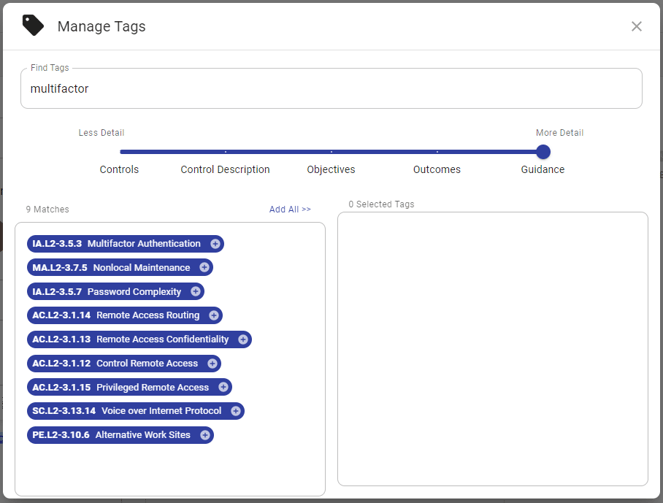
- Moving the Detail slider from left to right increases the depth of the search and helps you quickly identify the appropriate controls. The search results will appear in the left-hand window (i.e., the "available tags" list).
- With the slider in the "Controls" setting, the search is limited to the name of the control.
- With the slider in the "Control Description" setting, the search includes both the control name and the description of the requirements associated with the control.
- With the slider in the "Objectives" setting, the search includes the control name, control description, and the text of all objectives associated with the control.
- With the slider in the "Outcomes" setting, the search includes the control name, control description, the text of all objectives associated with the control, and the text of any Potential Assessment Considerations that are associated with the control.
- With the slider in the "Guidance" setting, the search includes the control name, control description, the text of all objectives associated with the control, the text of any Potential Assessment Considerations that are associated with the control, and the official guidance associated with the control.
- To tag your inventory item with all of the controls, click the
 button above the available tags list. To tag the inventory item with an individual control, click the
  at the end of the control name. When a tag is applied to an inventory item, that tag will appear in the right-hand list (i.e., the "applied tags" list).
 - To remove all of the tags associated with your inventory item, click the
 button above the applied tags list. To remove an individual tag from your inventory item, click the
  at the end of the control name in the applied tags list.
Next Article - Assigning RACI