
Overview
The Library Site is the back office a vendor or Enterprise client with multiple tenants uses to build and maintain the content distributed to tenants managed in FutureFeed. Rather than re-creating procedures, policies, control notes, and document expectations inside each tenant, generate this information once on the Library Site and then publish (“push”) revisions to all of them at once.
The site is organized around two top-level concepts in the left navigation:
- Packages — the products a vendor offers to its clients or what an Enterprise client manages across its organization. A package bundles a set of Document Templates, Summary Notes, and Expected Documents under a single product title and URL.
- Clients / Enclaves — the tenants the vendor or an Enterprise client manages. From this view, see every associated tenant that is connected to the package.
Inside a package, the editor surface is divided into the three sections covered below. Each section is purpose-built for different information a vendor maintains on behalf of its clients or direct client on behalf of the organization.
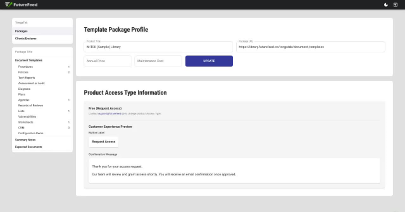
Figure 1. Template Package Profile. The left navigation lists every section inside a package: Document Templates (grouped by category), Summary Notes, and Expected Documents.
Why the Library Site matters for multi-tenant management
While managing a handful of tenants can be kept content reasonably in sync by hand, managing dozens or of tenants will consume too much valuable time and be prone to user error. The Library Site exists so vendors and Enterprise clients can:
- Author once, publish many. A revision of an Access Control Policy is written and versioned in the library, then pushed to selected client enclaves rather than copy-pasted into each environment.
- Keep clients on the same revision baseline. Every published artifact carries an explicit version (v1, v2, v3…) and a publish date so you can see at a glance which tenants are current and which are stale.
- Differentiate per tenant when needed. A vendor can ship the same core package to every client and still tailor specific templates or documents for an individual enclave.
Document Templates
Document Templates are the reusable building blocks—procedures, policies, plans, agendas, lists, worksheets, CRMs, and so on. Each template is versioned, categorized, and flagged with attributes that control how interact with it.
How templates are organized
Templates live inside a package and are grouped by category in the left sidebar. The counter next to each category is the number of templates currently in that group, which makes it easy to spot under- or over-stocked areas of a package.
Out of the box, the available categories are:
- Procedures
- Policies
- Tech Reports
- Assessment or Audit
- Diagrams
- Plans
- Agendas
- Records of Reviews
- Lists
- Vulnerabilities
- Worksheets
- CRM
- Configuration Items
Working with the template table
Selecting Document Templates (or any individual category) opens a sortable, searchable table. Each row is one template; the columns expose the controls a vendor uses to manage that template across every tenant:
- Published Revision— the current live version (for example Version 2.0, Rev 1, v1).
- Required? (Universal)— when checked, the template is mandatory for every client subscribed to this package.
- Copy Enabled? (End-user Editable)— when checked, end users in a client enclave can clone the template and edit their copy. Leave unchecked when the vendor wants the template to remain read-only.
- Revisions— the count of historical versions for the template. Clicking the count opens the revision history for that template.
- Tags— the count of tags applied to the template. Tags are used for search and for tying a template back to control frameworks and expected documents.
- Title— the customer-facing name (editable inline).
- Category— the category dropdown lets a vendor reclassify a template without recreating it.
The purple “+” button in the top right adds a new template. The trash icon on each row removes a template from the package (revisions are preserved for audit purposes).
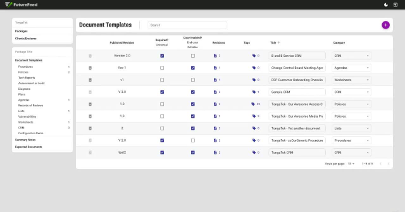
Figure 2. The Document Templates table. Required, Copy Enabled, revision count, tag count, title, and category are all editable inline, so a vendor can change how a template behaves for every subscriber without leaving the row.
Summary Notes
Summary Notes are the vendor’s authoritative narrative for each control in a compliance framework: “here is what this control means in our service, here is the evidence to expect, here is the guidance our analysts give clients.” A vendor authors them once on the Library Site and pushes the latest revision to clients on their own cadence.
Framework selection
Summary Notes are framework-scoped. The Framework dropdown at the top of the view switches the entire table to the controls of a different framework, so the same package can carry a separate, versioned set of notes for each framework a client may be assessed against.
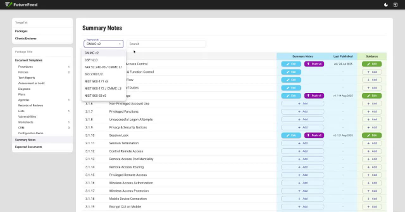
Figure 3. The Framework selector on the Summary Notes view switches the control set in the table. The same package can carry independent, separately-published summary notes for every framework a vendor supports.
Authoring and publishing summary notes
Each row in the table is a single control (for example 3.1.1 Authorized Access Control). The row carries three independent actions:
- Summary Notes — Edit opens the rich text editor for the vendor’s narrative on the control. The button is colored blue when a draft exists and outlined when no note has been written yet.
- Push v — the pink Push button appears once a draft is ready to publish. Clicking it pushes the new version (v1, v2, v3…) out to subscribed client enclaves and stamps the Last Published column with the version and date.
- Guidance — the green Edit button maintains a separate Guidance block. Guidance is internal-facing direction for the vendor’s own analysts and consultants, distinct from the customer-facing Summary Notes.
The Last Published column is the at-a-glance ledger for the entire framework: a vendor can scan it and immediately see which controls have an outstanding draft to publish and which controls have never been published at all.
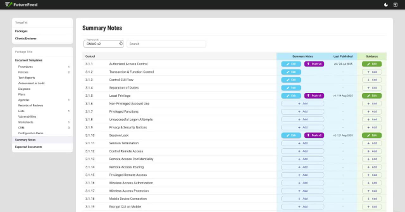
Figure 4. The Summary Notes table for CMMC v2. Edit drafts a note, Push publishes the next version to subscribers, and the Guidance column holds separate, internal-only direction for the vendor’s analysts. The Last Published column shows the live version and publish date.
Expected Documents
Expected Documents define the artifacts a vendor expects every client to maintain in their FutureFeed environment—the policies, plans, procedures, and reports that satisfy framework controls and a vendor’s own product opinion. The Expected Documents view is where a vendor curates that list, decides which artifacts the platform’s system-provided documents already cover, and adds vendor-specific additions on top.
What the columns mean
Each row is one expected document. The columns describe where it came from and how it relates to the rest of the package:
- Name — the document’s display name (for example Access Control Policy, Maintenance Policy).
- Source — System for FutureFeed’s built-in expected documents, or a vendor-specific source for ones the vendor adds via the Add Vendor Expected Document button.
- Category — mirrors the Document Templates categories (Policies, Plans, Procedures…) so the two views line up.
- Frameworks — the framework(s) this document satisfies, e.g. All Frameworks or CMMC v2.
- Templates — the Document Template linked to this expected document, when one exists. Linking is what turns an expectation into a one-click fulfillment: subscribers can produce the document directly from the vendor’s template.
- Fulfillments — a rollup of how many client documents currently satisfy the expectation across the vendor’s subscribers.
- Actions (Visible toggle) — controls whether the expected document is shown to subscribers at all. Toggle it off to hide a system document the vendor doesn’t want to surface; toggle it on to make a vendor-added expectation visible.
Vendor-specific expected documents
The Add Vendor Expected Document button (top right) is for adding artifacts the vendor requires that aren’t already in the system list. A common pattern: the vendor links the new expected document to a corresponding Document Template (created in Section 1), and the next time a client opens their environment they see both the expectation and a one-click way to generate the document from the vendor’s template.
Figure 5. Expected Documents. The Source column distinguishes system-provided expectations from vendor-added ones, the Templates column connects each expectation to a one-click fulfillment, and the per-row Visible toggle lets the vendor curate exactly which expectations are surfaced to subscribers.
How the three sections work together
The three sections are designed to reinforce each other in a single workflow:
- Define expectations. A vendor decides, on the Expected Documents tab, what every client should have in their environment—and chooses which system expectations to surface or hide.
- Author the supporting content. On the Document Templates tab, the vendor builds the corresponding policy, plan, or procedure template, marks it Required where appropriate, and decides whether end-users can edit a copy.
- Connect templates to expectations. Linking a template to an expected document turns the expectation into a one-click fulfillment for subscribers.
- Layer framework narrative on top. On the Summary Notes tab, the vendor writes a per-control narrative for each framework the client is assessed against, and pushes new versions out on the vendor’s own cadence.
Because all four steps happen in the Library Site rather than inside any individual client tenant, the vendor maintains a single source of truth—and every subscribed client picks up the latest curated set of templates, notes, and expectations on the vendor’s schedule.